

Getting Started
🚀 Quickstart
Rulekestra runs entirely inside Atlassian Cloud (Forge). There is nothing to host, patch or point at your Jira — install it, open it, and start writing rules.
1 · Install from the Marketplace
Install Rulekestra for Jira from the Atlassian Marketplace. A Jira administrator approves the install; every new site starts a 14-day full-feature trial automatically.
2 · Open the app
Find Rulekestra in your Jira Apps menu. You land on the Overview dashboard, with Rules, Advisor, Activity and Settings in the sidebar.
3 · Write your first rule
Go to Rules → New rule. Pick a ready-made template, describe what you want to the AI, or build it stage by stage: SCOPE → WHEN → IF → THEN → SET.
4 · Test, then go live
New rules arrive switched off so nothing fires until you say so. Use Test, Backtest and Shadow mode to check the rule would do the right thing, then flip it to Live.
🧭 Core concepts
An automation rule answers three questions, and the builder mirrors them in order:
| Stage | Question | Example |
|---|---|---|
| SCOPE | Where does this rule apply? | Projects VELA and NOKT |
| WHEN | What event starts a run? | Issue transitioned to Done |
| IF | Which events qualify? | Priority = Highest |
| THEN | What should happen? | Assign Alice, comment, notify Slack |
| SET | Who owns it and how does it run? | Name, mode, visibility, loop guard |
When the trigger event arrives, Rulekestra checks the conditions; if they pass, it runs the actions in order and writes a receipt for every step — including the steps it deliberately did not take.
Live vs Shadow mode
- Live — the rule performs its actions for real.
- Shadow — the rule evaluates fully but changes nothing. Its receipts show what it would have done, so you can verify behaviour with zero risk. Destructive rules (delete, clone) are held in Shadow automatically until you review them.
Who a rule runs as
A rule runs with the permissions of the person who authored it. If the author lacks a Jira permission an action needs (say, transition someone else's issue), that action is withheld — shown in amber in Activity — instead of failing mysteriously. An admin can approve it or grant the author access; see Admin & approvals.
Visibility
- Private — only you can see the rule.
- Everyone — anyone using the app in your Jira can see it.
- Group access — only members of a Jira group you pick.
The loop guard
Each rule has “Allow triggering from other automations” (on by default). Turn it off when two rules could trigger each other — e.g. a rule that comments on an issue, and another that reacts to comments. With it off, events caused by another automation won't re-fire this rule.
🛠 The rule builder
Rules → New rule opens the builder. The first thing you pick is what you're automating — the mode narrows the vocabulary to what makes sense, without ever hiding anything common:
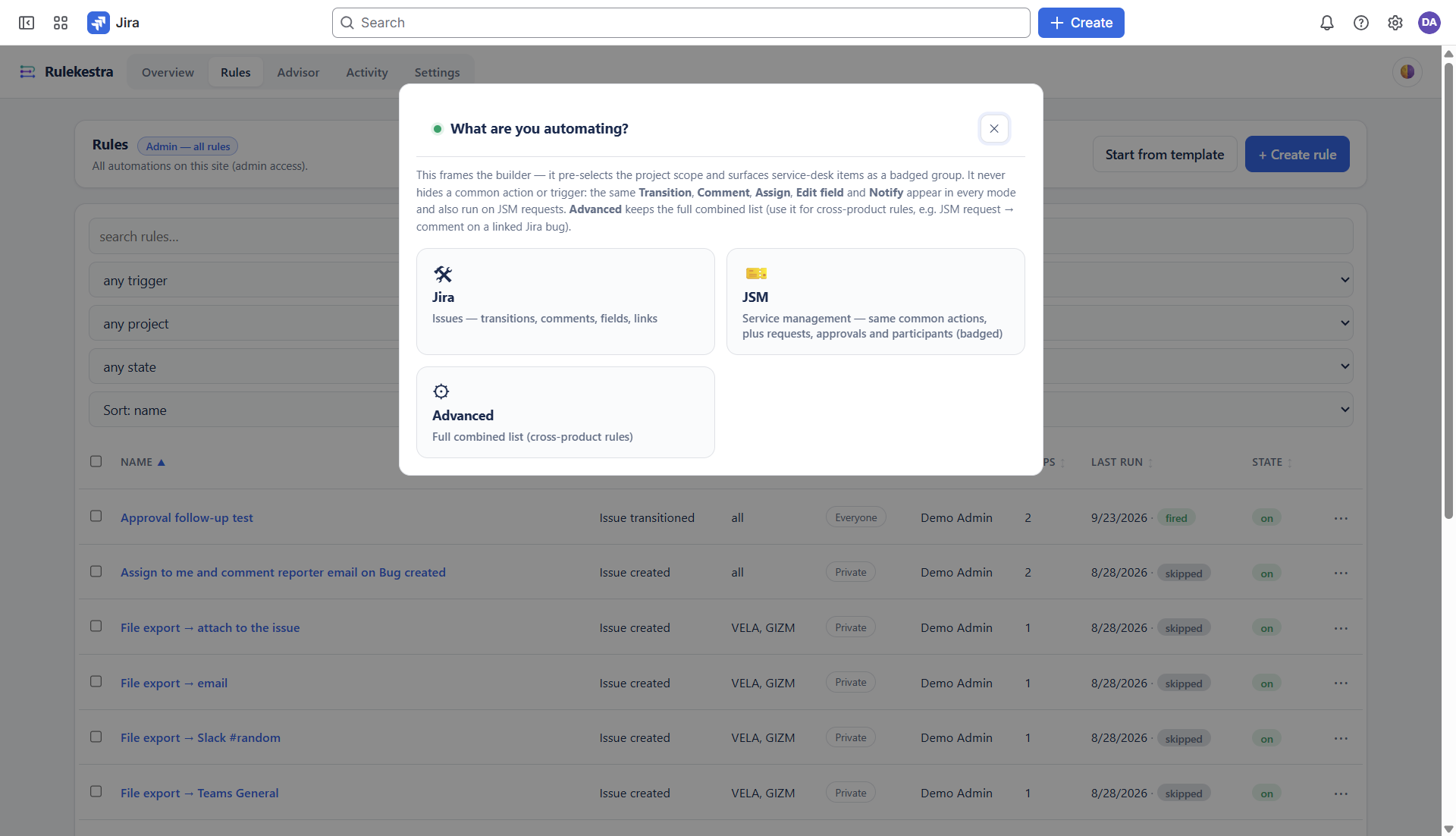
The builder then reads top-to-bottom: SCOPE → WHEN → IF → THEN → SUMMARY. A rule can be complete in three fields (name, trigger, action) — everything else has a sensible default.
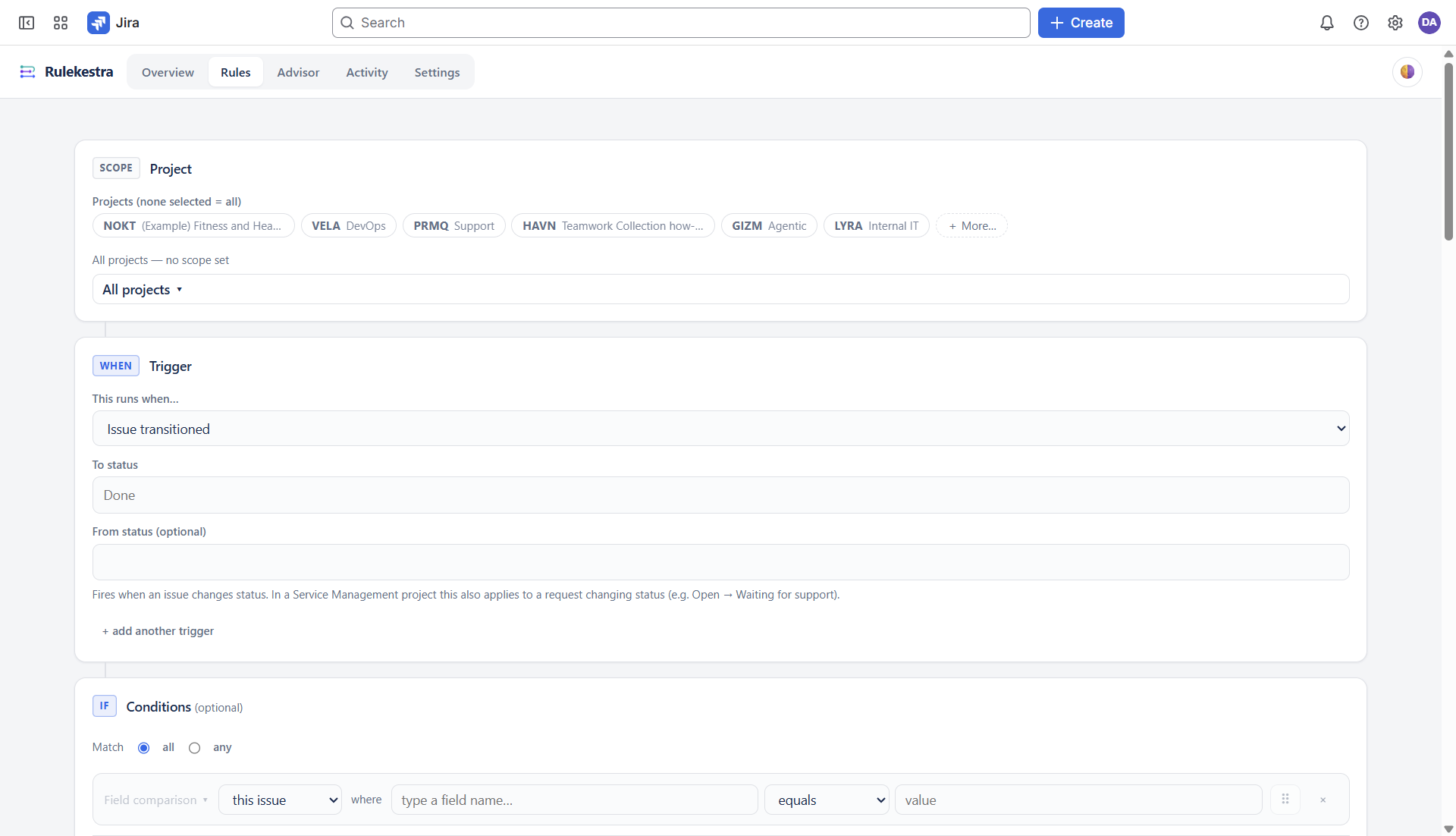
What the parts do
- SCOPE — the projects the rule applies to. Leave it on All projects for site-wide rules; scope it when the rule should only react in specific projects.
- WHEN — the trigger (see Every trigger). + add another trigger fires the rule if any of the triggers matches.
- IF — conditions, all optional (see Conditions).
- THEN — actions and blocks, in order (see Jira actions).
- Header — Details (name, id, mode, visibility, loop guard), Explain (a plain-language walkthrough of the rule), Test (run against a recent event), Save rule.
Adding a step
+ Add action opens the picker; Move to / Act on on each step chooses its target: this issue, the parent, the epic, all sub-tasks, all child items (stories/sub-tasks) or all linked issues. Blocks — if/else, sequential group, for-each loop, branch over related issues, wait, await approval — nest up to four levels deep. Every step also carries a ⋯ menu (error handling, retries) and drag-to-reorder.
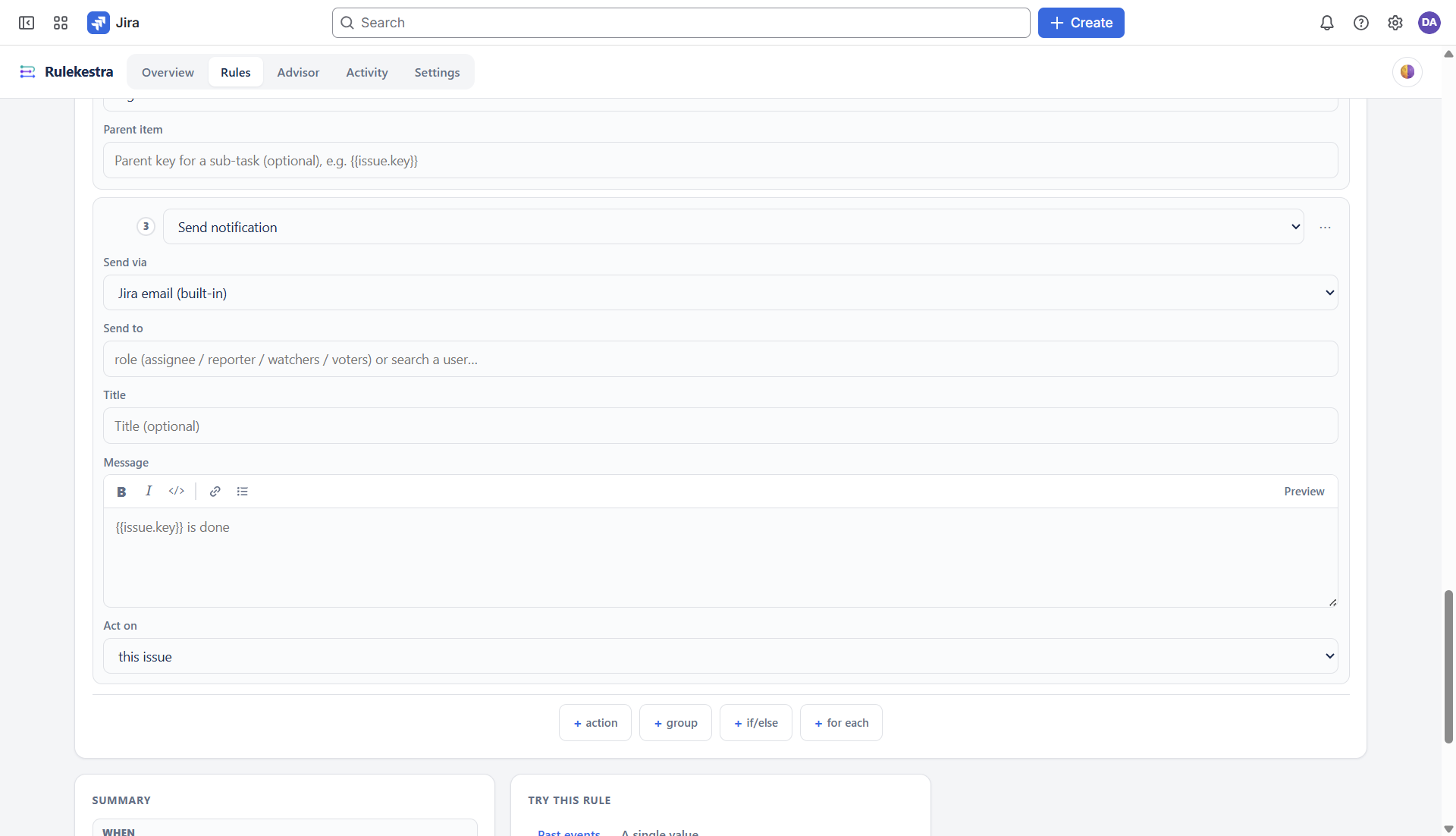
Before you can save
The SUMMARY refuses to save an incomplete rule and names exactly what's missing (“at least one action is required”, “transition needs toStatus”). It also previews the author grant: the projects in which every step of the rule can actually run under your permissions — and warns that steps outside those projects will be held rather than failed. See Admin & approvals.
📚 Template library
Not sure where to start? Rules → New rule → Browse templates (or the AI quick-create's “Start from a template”) opens the library: 52 ready-made rules across five categories —
| Category | What's in it | Examples |
|---|---|---|
| ITSM | 10 templates | Reopen when the customer comments on a resolved ticket · Auto-close after inactivity · VIP priority booster · CAB approval request · P1 war-room creator |
| DevOps | 10 templates | Move issue when its PR merges · CI failure Slack alert · Release notes on a tag · Add PR author as watcher · Flag unlinked commits |
| Agile | 10 templates | Close epic when all stories are done · Sync epic on first story start · Daily standup stale-ticket alert · Send back if a field is missing |
| Security | 10 templates | Mask API keys in comments · Quarantine unverified vendor submissions · GDPR erasure fan-out · Auto-close stale issues (starts in shadow) |
| Cross-project | 12 templates | Copy to another project on status change · Mirror comments to a linked support ticket · Teams adaptive card on blocker · Confluence release page on version release |
Each template asks for a couple of parameters (project, status, channel…) and drops the finished rule into the editor. Pick several projects and Rulekestra saves one rule per project — all switched off, so you can review and enable them from the rules list.
Triggers (When)
⚡ Every trigger
The WHEN stage chooses what starts a run. Rulekestra listens for 18 trigger kinds:
| Trigger | Fires when | Options & smart values |
|---|---|---|
| Issue created | a new issue is created | {{issue.*}} |
| Issue updated | an issue is edited | {{modifiedFields}} lists what changed |
| Issue transitioned | status changes | To status / From status (either can be blank). In a JSM project this also covers request status changes |
| Comment added | someone comments | {{comment.text}} |
| Field value changed | a watched field changes | Field picker (blank = any) with the site's real fields suggested; custom fields can be typed by name |
| Issue link added | a link is created | Link type filter (blank = any); {{link.type}}, {{link.otherKey}} |
| Work logged | time is logged | {{worklog.timeSpent}}, {{worklog.comment}} |
| Attachment added | a file is attached | {{attachment.filename}} |
| Incoming webhook | a POST hits the rule's URL | see Incoming webhooks |
| Git event | a GitHub/GitLab event arrives | see Git events |
| Scheduled | the clock says so | see Scheduled rules |
| Manual | a person presses ▶ Run | never fires automatically; whoever ran it is {{actor.accountId}} |
| Confluence page created / updated / published | page events in Confluence | Space key and page id filters; {{confluence.title}}, {{confluence.pageId}}, {{confluence.spaceKey}}, {{confluence.url}}, {{confluence.actor}} |
| Confluence comment added | a page comment arrives | same {{confluence.*}} values |
| JSM: Request created | a request is raised in a service-desk project | ordinary Jira projects are ignored — scope the rule to your service desk project(s) |
| JSM: Request comment added | a comment lands on a request | visibility filter: Any / Internal only (agents) / External only (customer-visible) |
Confluence triggers
A Confluence page that mentions a Jira issue (e.g. “PROJ-123” in its title or body) makes that issue the target — so a page-created event can comment on the issue, link the page back to it, or transition it.
The JSM internal/external guarantee
An internal-only comment rule relies on Jira saying which visibility a comment had. If that information is missing from the event, the rule does not fire — an internal-only rule can never leak an agent note to the customer portal. Choose “Any comment” if you'd rather never miss one.
System triggers need admin approval
Scheduled, Incoming webhook and Git event run with the app's own permissions rather than yours. A non-admin who authors one sends the rule to a Jira admin for approval when saving; it stays off until approved. This applies in Jira and JSM rules alike.
Multiple triggers
+ add another trigger adds chips; the rule fires when any of them matches. Chip triggers match any event of that kind — per-kind filters (to-status, field, link type…) are set on the primary trigger.
⏰ Scheduled rules & cron
The Scheduled trigger runs a rule on a clock. Two ways to describe the schedule:
- Cron expression (takes precedence when filled) — standard 5-field: minute hour day-of-month month day-of-week.
0 9 * * 1-5= 9am weekdays;0 9 1W * *= 09:00 on the 1st business day of the month (one-click button provided). - Days & time picker — tick the weekdays (Mon–Fri pre-checked), pick the hour and minute, and pick a timezone. Blank timezone = the server's local time; a Sydney customer's 9am rule should fire at 9am Sydney.
The JQL — what each run acts on
Scheduled rules take a JQL query: at every tick the engine scans, runs the JQL, and fires the actions once per matching issue — with {{issue.*}} bound to that issue. Leave the JQL blank to run once per tick with no issue (a heartbeat: setData a timestamp, notify #ops, or send a web request). Because a scan without an issue still needs nothing from Jira, a no-JQL rule is the reliable way to build watchdogs and recurring digests.
Scheduling is minute-granular and the engine evaluates the JQL on the days you ticked. To act only on stale work, express it in the JQL itself — e.g. project = SIT AND status = "In Progress" AND updated < -5d — rather than in conditions.
📨 Incoming webhooks
The Incoming webhook trigger turns any external system into a Rulekestra trigger: save the rule and a unique, unguessable URL is generated for it — shown right under the Save button. POST a JSON payload to that URL and the rule runs with the payload available as {{webhook.*}} smart values.
Acting on an issue
By default the engine auto-detects the issue key in the payload (fields named issue/issueKey, or any value shaped like PROJ-123). If yours nests it deeper, set the Issue key path — a dot-path like data.ticket.key — and the rule acts on that issue as if it had fired from Jira.
Check what actually arrived
The trigger editor has a “Check last payload received” button: it shows the timestamp, the full payload, which keys are now suggested as condition fields, and whether an issue key could be derived (in green) or not (in red, with the fix). Send a test POST from your external system first.
webhook.<key> — e.g. webhook.order.id equals 12345. Keys seen in the last payload are auto-suggested.🔀 Git events
Connect GitHub or GitLab under Settings → Git (an admin step), then the Git event trigger can fire on:
| Group | Kinds |
|---|---|
| Pull request | Any pull-request event · PR opened · PR updated · PR closed (not merged) · PR merged · PR reopened · PR review |
| Branch | Any branch event · Branch created · Branch updated (push) · Branch deleted |
| Tag | Tag created · Tag deleted |
| CI / Actions | Any CI outcome · CI passed · CI failed |
| Deployment | Deployment status |
The same kinds work for GitHub and GitLab (an optional provider filter narrows further). Family values like “Any pull request event” match every kind beneath them.
How the Jira issue is found
The rule's issue is derived from the branch name, PR title or commit message — the first KEY-123-shaped token (e.g. OPS-14). On CI events you also get {{git.conclusion}} and {{git.workflow}}.
Git data reaches actions as {{git.repo}} (owner/name), {{git.branch}}, {{git.prNumber}}, {{git.actor}} and {{git.kind}} — e.g. “post in #deploys when CI fails on OPS-*: {{git.repo}} {{git.branch}}”.
Conditions (If)
✅ Conditions & operators
Conditions are optional gates between WHEN and THEN. A condition reads a field (a dot-path into the event — fields.priority.name, webhook.order.id, data.saved…), an operator, and a value. Values accept smart values.
| Operator | Passes when |
|---|---|
| equals / notEquals | the field is / isn't the value |
| contains / notContains | the value appears / doesn't appear (text or list) |
| isEmpty / isNotEmpty | the field is / isn't empty (null, "", [] all count as empty) |
| in / notIn | the field is / isn't one of a list of values |
| greaterThan / lessThan | numeric (or date) comparison |
| startsWith / endsWith | text prefix / suffix match |
| matchesRegex | the value matches a regular expression |
Each condition carries a mode selector: Field comparison (the triple above), { } Custom expression (e.g. fields.storyPoints > 5 && fields.priority.name == 'High'), or a raw JQL clause (e.g. sprint in openSprints()). Field paths autocomplete against your site's real fields.
🧩 Groups & related issues
Groups
Nest conditions under Match all, Match any or Match none, up to four levels deep — e.g. match any of [ match all of [priority = Highest, status ≠ Done], match all of [labels contains hotfix] ].
Related-issue conditions
A related condition asks a question about the issues around the trigger issue. Pick a relation and a match, then the per-issue conditions:
| Relation | Reads as |
|---|---|
| parent | “the parent is …” |
| the epic | “my epic is …” (the parent, when that parent is an Epic) |
| all sub-tasks / any sub-task / no sub-task | “all sub-tasks are Done”, “any sub-task is blocked”… |
| all child items / any child item / no child item | children = issues whose parent is this one — an epic's stories or a task's sub-tasks alike |
| all siblings / any sibling / no sibling | siblings include this issue — “all siblings done → close the parent” counts itself |
| any linked / no linked | optionally filtered by link type (“no linked blocker is open”) |
Match semantics that keep intent honest: all needs at least one related issue and every one passing (so “close the parent when all children are done” can't fire on a childless parent); none is vacuously true on an empty relation.
Expressions, JQL & SLA — see the next three sections
Custom expressions are covered in Expressions, JQL & SLA together with the JQL condition and the JSM SLA condition.
🧮 Expressions, JQL & SLA
Custom expressions
When a field/operator/value triple can't say it — combining fields, arithmetic, ternaries — use a { } Custom expression condition. The grammar is the same safe expression language as the Compute action: arithmetic, comparisons, &&/||, ternary, string concat, and the function library below. Examples:
JQL conditions
A raw JQL clause asks “does this issue match this JQL?” — anything Jira can express, e.g. status changed to Done in the last 3 days or sprint in openSprints().
JSM SLA conditions
On service-desk issues, the SLA condition reads a request's SLA clocks. Pick a predicate — breached, running, paused (JSM's “on hold” — onHold is an alias), completed, or withinCalendar — and optionally narrow to one metric by name (e.g. “Time to resolution”); omit it and the predicate means any SLA on the issue.
Three honest-failure rules: a non-JSM issue evaluates false; a failed/unreachable SLA read evaluates false (never throws); and the safe reading of “could not establish that the SLA is breached” is not to fire.
Actions (Then)
🎬 Jira actions
Actions run in order, top to bottom. Each step's Act on retargets it (this issue / the parent / the epic / all sub-tasks / all child items / all linked issues), and text fields accept smart values.
| Action | What it does | Notes |
|---|---|---|
| Transition issue | moves the issue to a status | the status name, as Jira knows it |
| Comment | posts a comment | templated body; on a JSM request, mark it internal (agents only) or public |
| Assign | assigns a person | pick a user or {{actor.accountId}} |
| Auto-assign | assigns whoever carries the least work | a live Jira search measures load; choose between named candidates (your order breaks ties); scope the measurement to the open sprint, project or a JQL; least-story-points needs the site's points field |
| Send notification | Slack, Teams, email (incl. Jira's mailer), Gmail | targets come from Settings connections; see the fan-out note below |
| Edit field | sets a field | field IDs + proper values (rich text as ADF); display names are handled for common fields |
| Add / Remove watcher | watcher management | adding someone else needs only browse access to the project |
| Delete issue | deletes the issue | destructive — forced into Shadow mode on first save until an admin reviews it |
| Log work | logs time | Jira duration shorthand (“1h 30m”, “2d”) + optional comment |
| Clone issue | copies the issue | copies project/type/summary/description/labels, links back to the original by default; title prefix configurable |
| Create issue | creates an issue anywhere you can | project, type, summary, description, assignee, labels, optional parent (creates a sub-task/child) |
| Link issue | adds an issue link | canonical link-type names (“blocks”, “relates to”, “duplicates” — not the UI labels) |
| Look up work items | runs a JQL and saves the matches | stored as {{data.<saveAs>}} — an array of {key, fields}; read {{data.blockers.length}} or loop it |
| Send web request | outgoing HTTP call | see Web requests & data |
| Set data | persists a value | key/value both templated; optional expiry in days; readable as {{data.<key>}} from any rule |
| Compute value | evaluates a safe expression, stores the typed result | numbers/booleans stay typed, so later greaterThan/lessThan and math see them properly |
| Export data (JQL) | issues → CSV / XLSX / JSON / Markdown file | see Confluence & exports |
| Create / Update / Link Confluence page | Confluence writes | see Confluence & exports |
| JSM: Approve / Decline request | answers a JSM approval as its approver | see Blocks, waits & approvals |
| JSM: Add / Remove participant | manages request participants | service-desk projects only |
The notify fan-out, precisely
Chat channels (Slack/Teams) address a channel or thread, so one message is sent per resolved issue, all to the same recipient: “notify #support” on a parent with 3 sub-tasks sends 3 messages, and {{issue.key}} renders the issue being acted on. Name the issue that fired the rule with {{triggerIssue.key}}. (Never append an issue key to a Teams recipient — it corrupts the thread id; put the key in the body.)
Jira writes take IDs and canonical names
Edit field takes field IDs and proper values (rich text as ADF — an HTML blob reads as “not on the appropriate screen” otherwise); link types take canonical names, not the UI labels. The builder helps where it can, and the receipt tells you when Jira rejected a value.
📕 Confluence & exports
Confluence pages
- Create Confluence page — space key, templated title and body (plain text, wrapped properly for Confluence), optionally nested under a parent page id.
- Update Confluence page — by page id; replace swaps the body, append adds a paragraph below the existing content; optional new title.
- Link Confluence page — puts the page on the Jira issue as a web link (under Development), by page id; the title/URL default to the page's own.
Confluence events themselves (page created/updated/published, comment added) are triggers — see Every trigger.
Export data (JQL)
Run a JQL, get a real file — CSV, XLSX, JSON or Markdown — delivered to one of five destinations:
| Destination | Delivery |
|---|---|
| attach | uploaded to the issue as an attachment (no extra permissions needed) |
| sent to an address | |
| slack / teams | the file lands in the channel/workspace (setup notes below) |
| confluence | posted into a Confluence space |
Cap and message: the export is partial past the result cap, and the built-in message discloses that honestly. A custom authored message replaces the preamble but never the cap disclosure. Per-workspace setup the first time: Slack needs the bot to be a member of the channel (even though plain text posts don't), and Teams needs the Files tab provisioned in the target channel — each vendor's error message when this is missing is misleading, the fix is just the membership.
🌐 Web requests & data
Send web request
An outgoing HTTP call (POST by default) with a templated URL, body and headers. Two things make it robust:
- Stored credentials — pick a credential saved under Settings and its auth header is injected; the secret never enters the rule.
- The
jsonpipe — use{{value | json}}for every interpolated value inside a JSON body: it adds its own quotes and escapes newlines, so a summary containing a quote can't produce a malformed body (and lists/objects render as real JSON, nota,b/[object Object]).
Capture the response
Save result as stores the HTTP response (JSON-parsed, else raw text) into the data store — “call your own code, use its result”. Read it in later actions/conditions as {{data.<saveAs>.<path>}}.
The data store
Set data and Compute value persist under a key; Look up work items and webhook responses save under one too. Everything is readable as {{data.<key>}} — across actions, later runs, and even other rules — and can carry a TTL. The data store is tenant-private (see Security & isolation).
🧱 Blocks, waits & approvals
Structural blocks
- If / else — conditions, a THEN arm, and an optional ELSE arm.
- Sequential group — a named island whose steps stay in order (nesting allowed).
- For each — runs the DO block once per item of a list:
related.subtasks, a lookup result (data.<lookupKey>),createdIssues, or any smart-value path resolving to an array. Inside DO the current item is{{item.*}}(or{{<as>.*}}); when items are issues, that issue also becomes{{issue.*}}, so “this issue” steps act on the item. Cap the iterations. - Branch: related issues — the same idea for a relation: the DO block runs once per parent/sub-task/linked/sibling/epic/child — or per result of a JQL branch. Inside, that issue IS
{{issue.*}}.
Wait
Pause minutes/hours/days, then continue. With a scoped then, only those actions are deferred (everything after the Wait runs immediately, in parallel); without it, everything after is deferred — the classic “wait 3 days, then if still open, escalate”.
Await approval
Pause until a human approves. Approve/reject links go out via Slack, Teams, email or Jira (channel-native address, templated message, optional timeout in hours — auto-expire). Same then scoping as Wait: with it, only the gated actions wait for the decision; without it, everything after is gated. On reject, the gated actions don't run — and the run receipt says so.
JSM approvals
On service-desk requests, the Approve request (JSM) / Decline request (JSM) actions answer a pending approval as its approver — they run as the user, not as the app, because Jira's permission for answering an approval is “user is assigned to the approval”. Omit the approval id to answer the single pending one; with more than one pending, the engine refuses rather than guess. An optional comment is posted as a separate comment, not smuggled into the decision.
Blocks nest up to four levels; every block appears in the run receipt with the same step-by-step honesty as a leaf action.
🛡 Error handling & retries
Every action step has a ⋯ Step settings menu with two controls:
- On error — stop (default) halts the run at the failed step; continue lets later siblings run anyway. A chip on the row shows when “continue” is set.
- Retry on failure — no retry, ×1, ×2 or ×3 (the engine clamps beyond that). Retries apply to leaf actions; a container block itself isn't retried (its children carry their own settings).
What a failure looks like
Failures are visible, never silent: the run's receipt marks the failed step, quotes the real Jira error (“not on the appropriate screen”, a 403, a malformed body), and the run counts as Errors on the Overview. Repeated failures are what the failure alerts setting (see Settings) watches. Steps that were skipped because the rule was withheld or paused show as un-attempted — never dressed up as success.
Dead letters & dropped events
Delivery hiccups don't vanish: undeliverable events land in dead letters (reviewable and retryable from Activity), and events dropped by policy (rate limit, loop guard, tombstone) are listed in dropped events — both visible to whoever may see the underlying issues.
Smart Values
✨ Smart values reference
Smart values template live data into conditions, comments, messages, webhook bodies and more — {{issue.key}}, {{now | plusDays: 7 | date: "yyyy-MM-dd"}}. In the builder, the { } Smart values button opens the in-product browser (click any value to copy it); fields that accept them carry the { } menu.
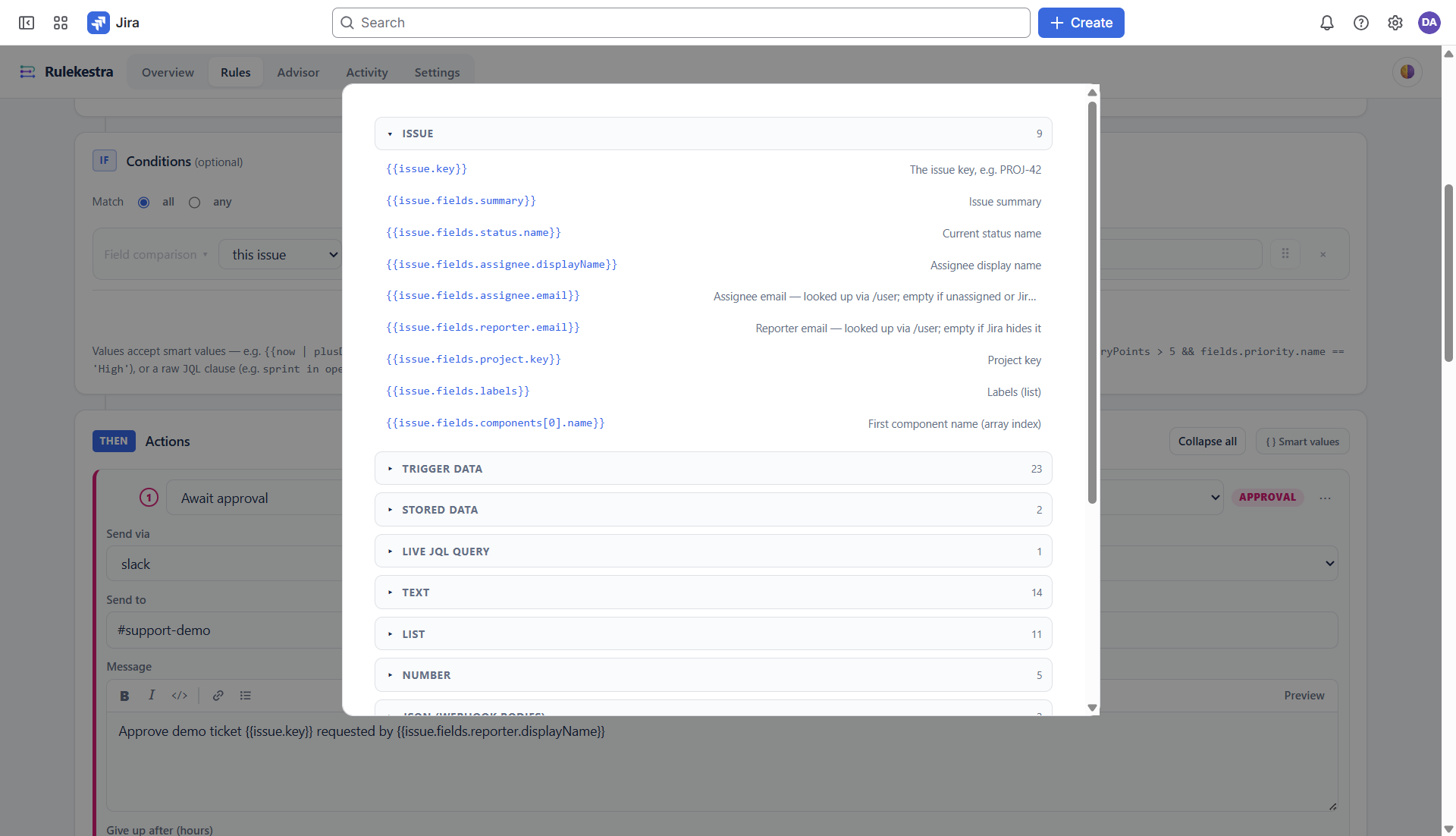
Issue & trigger data
| Value | Meaning |
|---|---|
| {{issue.key}} | the issue key, e.g. PROJ-42 |
| {{issue.fields.summary}} / {{issue.fields.status.name}} | summary / current status name |
| {{issue.fields.assignee.displayName}} / .email | assignee name / email (email empty if unassigned or Jira hides it) |
| {{issue.fields.reporter.email}} | reporter email (empty if Jira hides it) |
| {{issue.fields.project.key}} / {{issue.fields.labels}} | project key / labels (a list) |
| {{issue.fields.components[0].name}} | first component name (array indexing works) |
| {{actor.accountId}} / {{actor.displayName}} / {{actor.email}} | who fired the event — use accountId in assign/addWatcher; email empty if Jira hides it |
| {{now}} | current timestamp (ISO) |
| {{webhook.<path>}} | any field of an incoming-webhook payload (also as a condition field) |
| {{git.repo / .branch / .prNumber / .actor / .kind}} | git event data; CI events add {{git.conclusion}} and {{git.workflow}} |
| {{confluence.title / .pageId / .spaceKey / .url / .actor}} | Confluence event data |
| {{link.type}} / {{link.otherKey}} | newly created link: its type / the issue on the other end |
| {{worklog.timeSpent}} / {{worklog.comment}} | work-logged trigger data |
| {{attachment.filename}} / {{comment.text}} | attachment-added / comment trigger data |
| {{modifiedFields}} | list of field names changed in the changelog |
Related issues & created issues
| Value | Meaning |
|---|---|
| {{related.parent[0].key}} | parent issue key |
| {{related.subtasks | size}} / {{related.children | size}} | count of sub-tasks / child items (an epic's stories, a task's sub-tasks) |
| {{related.epic[0].key}} | the epic this issue belongs to |
| {{createdIssue.key}} / {{createdIssues[0].key}} | issues created earlier in this run by a create/clone step |
Stored data & live JQL
| Value | Meaning |
|---|---|
| {{data.<key>}} | a value saved by Set data / Compute / Look up / a webhook response — persists across runs and rules |
| {{jql(project = SIT AND status = Done)}} | inline JQL macro — expands to a comma-joined list of matching issue keys, right in a template |
{{issue.*}} is the issue being acted on. To name the one that fired the rule, use {{triggerIssue.key}}.Pipes and formulas are a world of their own — Pipes & formulas next.
🪈 Pipes & formulas
Pipes post-process a value inside {{ … }}, chained left-to-right: {{issue.fields.summary | trim | abbreviate: 40}}. Arguments use name: arg.
Text
upper · lower · capitalize · trim · substring: 0,20 · slice: 0,20 · left: 10 · right: 10 · replace: FROM,TO · abbreviate: 40 (ellipsis) · truncate: 40 · striptags · urlencode · length · split: ","
Regex
Lists
size · first · last · get: 0 · take: 3 · join: ", " · sort · reverse · distinct · uniqueBy: "fields.status.name" · pluck: "key" (alias map) · filterBy: "fields.status.name", "Done" · mapFormat: "* {key}: {fields.summary}" · sortBy: "key", "desc"
Numbers & dates
int · float · abs · round · ceil · floor · plus: 1 · minus: 1 · times: 2 · dividedBy: 2 · formatDuration (seconds → “2h 30m”)
date: "yyyy-MM-dd" · plusDays / minusDays / plusHours / minusHours / plusMinutes · plusBusinessDays / minusBusinessDays (skip weekends) · startOfDay / endOfDay / startOfWeek / startOfMonth · isWeekend · diffDays (age) · daysUntil (due dates) · diffHours
Logic & JSON
default: "Unassigned" (fallback when empty/missing) · ifNull · json — use for every value inside a webhook JSON body: it adds its own quotes and escapes newlines, so {{summary | json}} can never produce a malformed body, and lists/objects become real JSON.
Formulas — {{= … }}
For computed logic, {{= … }} evaluates a full expression (arithmetic, comparisons, &&/||, ternary) with a function library:
A malformed formula renders empty rather than throwing — a broken template never fails a run, but it's also visible as an empty string rather than garbage.
AI & Migration
🤖 AI authoring
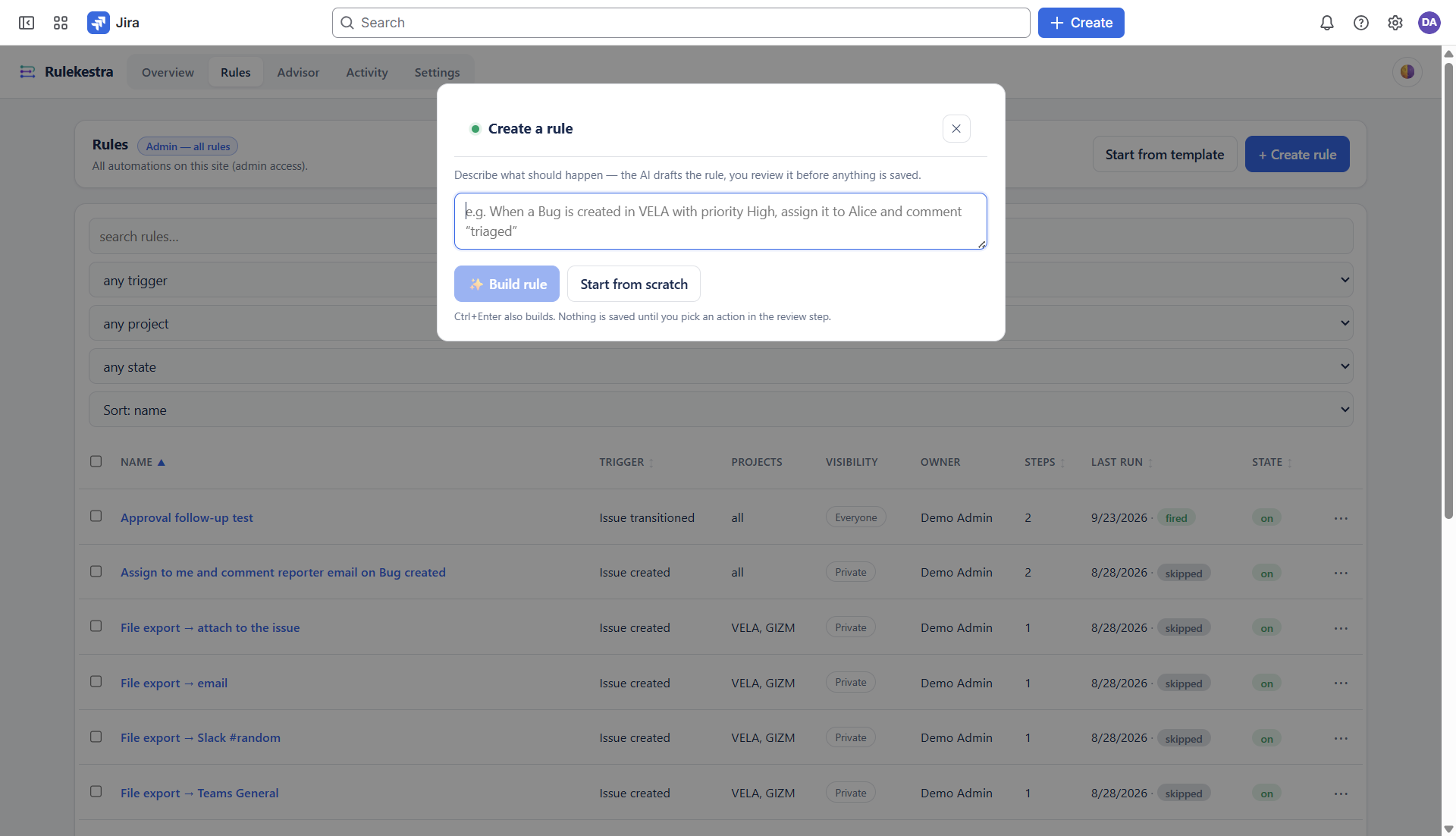
Describe what should happen; the AI drafts the rule, you review it before anything is saved.
Three doors to the AI
- Quick-create — the ✨ Build rule prompt: one sentence in, a full rule draft out (SCOPE, WHEN, IF, THEN), opened in the editor for review. Nothing is saved until you pick an action in the review step.
- Explain — the builder header button turns any rule (including a hand-built or migrated one) into a plain-language walkthrough.
- AI recommendations — the Advisor's AI tab proposes rules grounded in your site's real data (projects, fields, statuses, plus Slack channels/users when connected) — see the Advisor section of Run outcomes.
Grounding & tokens
The AI is grounded tenant-wide: it knows your projects, fields, statuses and (when connected) Slack users/channels, so drafts reference real names. Tokens are metered per instance — see Licensing for the included quota. AI-authored rules arrive switched off, and rules that need the app's own permissions (schedules, webhooks, git) go to the admin queue like any other.
📦 Migration wizard
Moving off another automation tool? Settings → Migration (or the Advisor) scans your existing automation rules and imports them as Rulekestra rules.
- Scan — the wizard reads the other tool's rules and shows what it found, per rule, before importing anything.
- Translate — triggers, conditions, actions and smart values are mapped to Rulekestra's vocabulary; where an exact equivalent doesn't exist the wizard says so instead of guessing, and the run's receipts stay honest about what translated.
- Quota — migration is metered by the same AI token quota as authoring (a per-scan cap included); exhausted rules are skipped rather than half-imported.
- Verify before enabling — imported rules arrive switched off. Review them in the editor (the Test, Backtest and value tester tools help), then enable.
Migration never touches the original rules — the source tool keeps running until you switch it off yourself.
Running & Operating
🧪 Test, Backtest & Evaluate
Three verification tools live in the builder's Test area, plus the two header buttons:
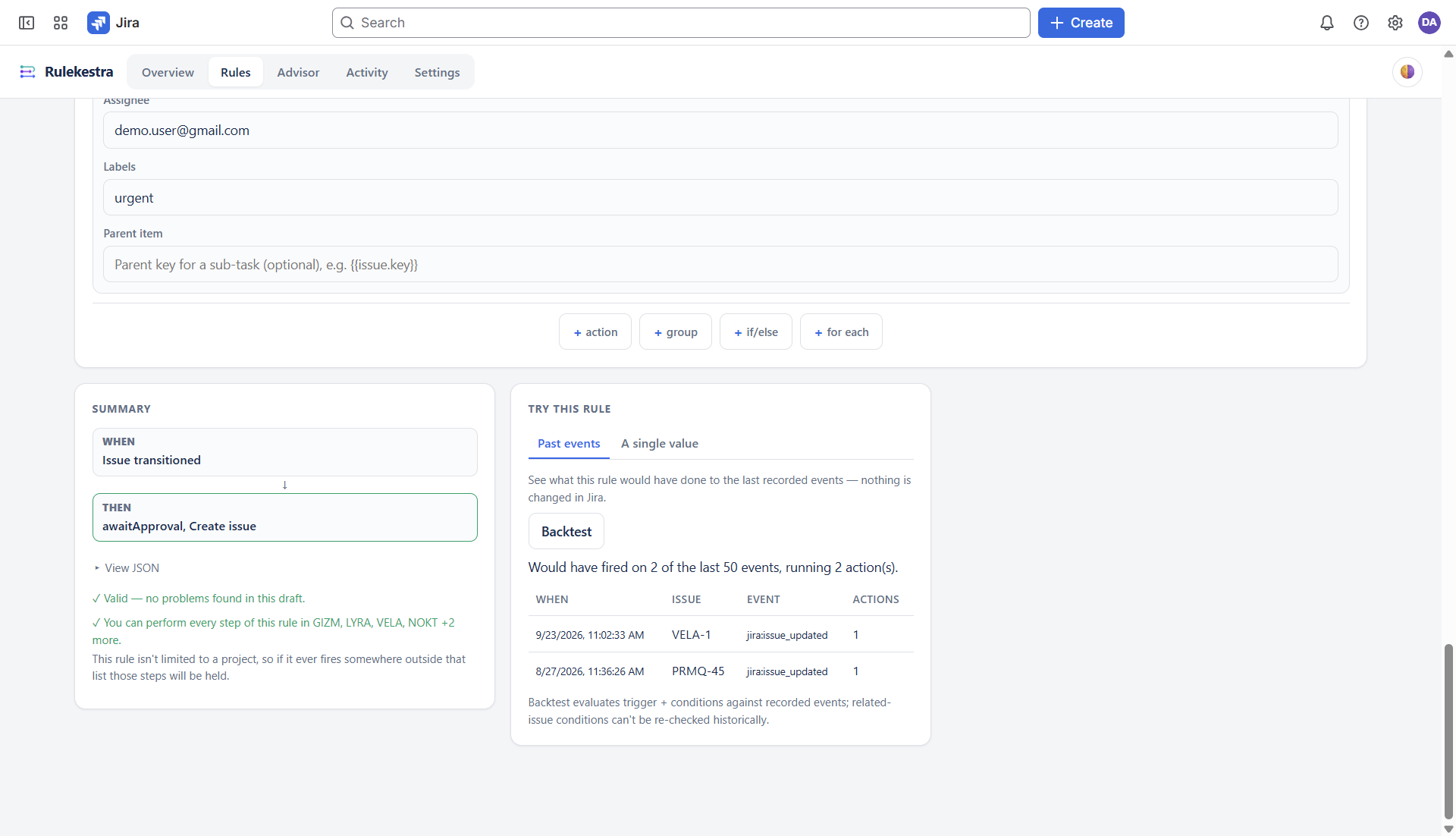
Backtest — would it have fired?
Runs the rule's trigger + conditions against the last 50 recorded events and reports “would have fired on N of the last 50 events, running M action(s)”. Related-issue conditions can't be re-checked historically — the result says so. A rule that would have fired on 0 of 50 is telling you something before it ever goes live.
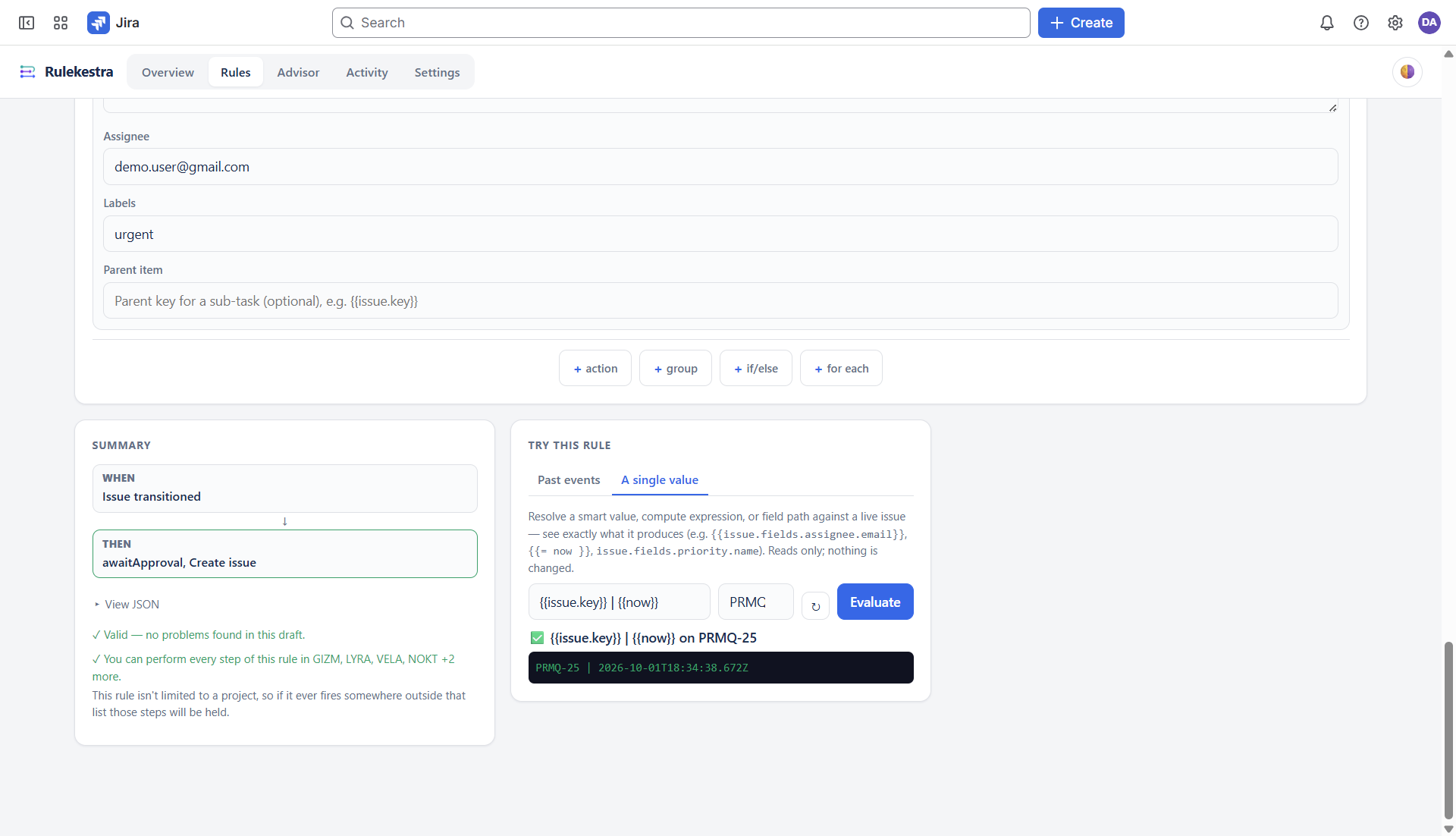
Evaluate — resolve one value
The value tester resolves a smart value, expression or field path against a live issue (enter an issue key): {{issue.key}} | {{now}} → PRMQ-25 | 2026-10-01T18:34:38.672Z. Reads only; nothing is changed. The fastest way to check a pipe chain or a field path before wiring it into an action.
Test — run against a recent event
The header Test button picks a recent event and runs the whole rule against it (respecting the current mode), so you see actual receipts for the exact steps the rule would take.
Shadow mode — the long-running test
Switch a rule to Shadow in Details: it evaluates fully on every real event but changes nothing, writing receipts that show what it would have done. Run it shadow for days, read the outcomes in Activity, then flip to Live. Destructive rules start here automatically.
📊 Run outcomes & receipts
The Overview
Your home dashboard: total runs, rules count, a success-rate headline, the outcome breakdown (fired / errors / paused / withheld or no-op / declined by conditions), runs-per-day chart, and per-project totals. A banner reminds you when failure alerts are off.
Every step writes a receipt
A run receipt is the step-by-step record of what happened — including what deliberately didn't: a condition that declined quotes the real field values it compared; a withheld action says which permission was missing; a paused run shows its gate. Colours match the builder's action families, so a run visually mirrors its rule. Nothing is ever dressed up as success — skipped steps are shown as un-attempted.
Activity
The Activity view lists Runs, Deliveries and Retries, filterable by outcome and mode (live vs shadow). From here you can open any run's full receipt, review dead letters (retry or dismiss a failed delivery), and inspect dropped events — everything shed by rate limits or loop guards, never silently deleted.
Advisor
- Run Health Audit — scans your rules for conflicts (two rules fighting over the same transition), lint problems, and rules that never fire; click through to fix.
- AI recommendations — grounded per project; proposing a rule costs AI tokens, reviewing one doesn't.
- JQL data export — run any JQL in-browser and download CSV/JSON (the same export engine as the
exportDataaction).
⚙️ Settings
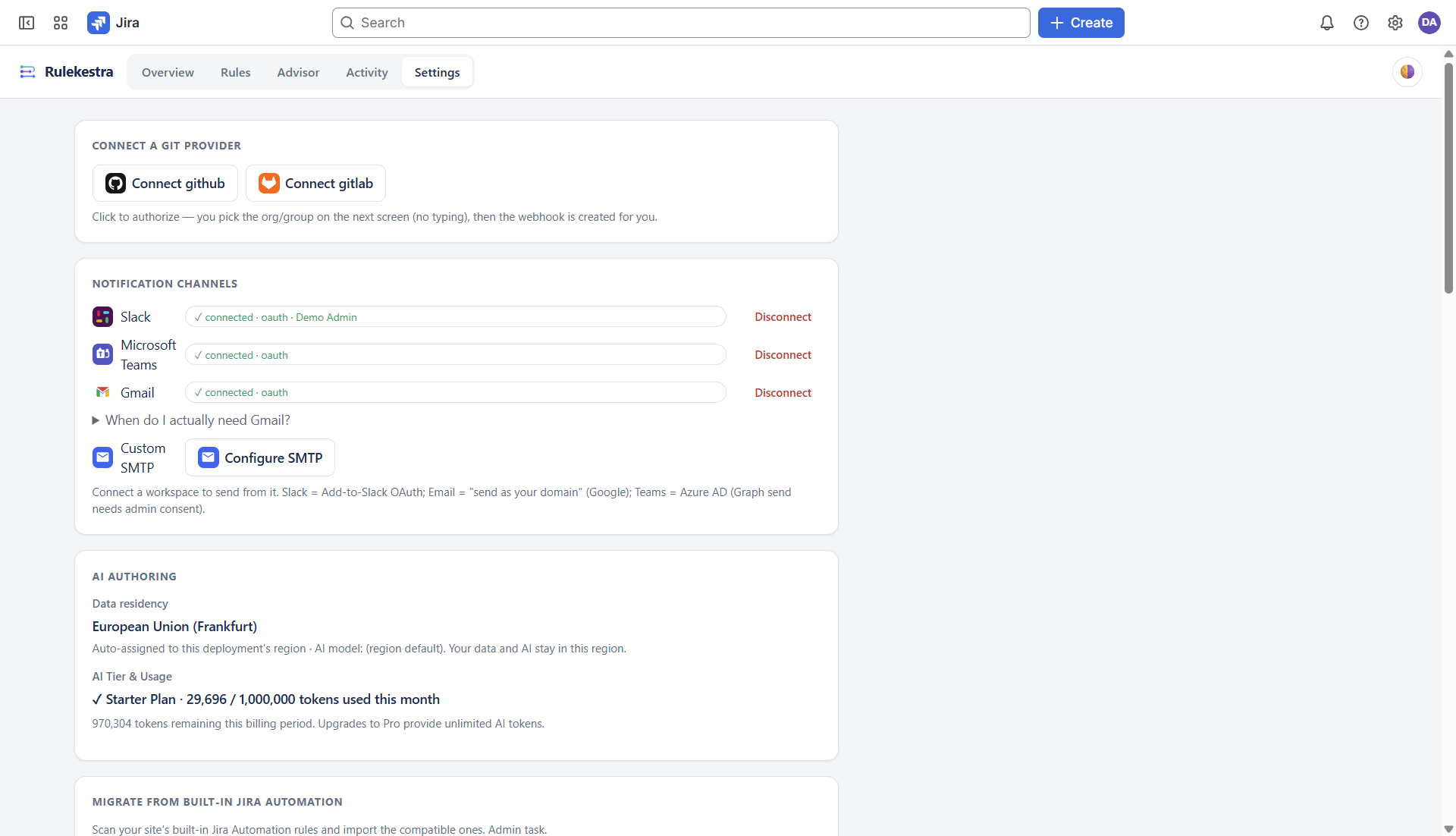
Connections
| Connection | What it enables |
|---|---|
| Git (GitHub / GitLab) | the Git event trigger (OAuth, admin-only) |
| Slack | notify + approval + export delivery to channels |
| Microsoft Teams | notify + approval + export delivery to chats/channels |
| Gmail / SMTP | email notifications and approvals from your own address |
| Webhook credentials | named auth headers injected into Send web request — secrets never live in rules |
AI
Data residency is fixed to the deployment's region (EU Frankfurt for the EU deployment; a tenant is only served by a deployment whose residency it is allowed on). The instance's token tier with a live usage meter. See Licensing for what each tier includes.
Automation governance
- Pending approvals — rules authored by non-admins that need a Jira admin's yes (system triggers, destructive actions), plus revoke for rules whose author has left the org.
- Failure alerts — repeated failures notify a channel you choose; the Overview nags while it's off.
- Allowed domains — restrict which domains webhook/export actions may call.
Data
The data store browser lists the key/value rows your rules persist (with their TTLs). Uninstalling the app deletes tenant data.
🛂 Admin & approvals
Who a rule runs as
Every rule runs with its author's permissions — not the app's. At save time the builder previews the grant: the projects where every step can genuinely run under the author's rights, scoped per project. If someone has browse access to VELA but only partial rights in GIZM, the grant reflects that per project rather than under-granting both.
Withheld, not failed
When an action would exceed the author's permissions, it is withheld — recorded in amber on the run receipt with the reason, instead of erroring or (worse) succeeding through the app's own rights. The rest of the rule runs normally.
Admin approval queue
Rules land in the queue when they need power beyond the author's reach:
- System triggers — scheduled, incoming webhook, git event (any non-admin author; the rule runs with the app's permissions, so an admin must vouch for it).
- Destructive actions — delete-issue rules are forced into Shadow on first save and stay there until reviewed.
Approvers see the full rule before approving. The queue also lets an admin revoke the rules of an offboarded author — their rules stop running under their (stale) identity immediately.
Approval gates in runs
The Await approval block pauses a run for a human decision; the receipt shows the pending gate, and the decision (from Slack, Teams, email or Jira) resumes it. A gate that auto-expires (timeout) ends the run honestly as expired — the gated actions never run.
Trust & Plans
🔒 Security & isolation
- Tenant isolation — every site's rules, runs, data store and connections are walled off from every other's; a rule can only ever read or write through its own tenant's identity. Uninstalling the app deletes the tenant's data.
- Runs as the author, scoped per project — see Admin & approvals: author-granted, per-project, expiring; withheld rather than escalated.
- Secrets never in rules — webhook credentials live in Settings and are injected at call time; connection tokens are encrypted at rest; run payloads are sealed, not stored in the clear.
- Forged requests fail closed — install and event webhooks verify signatures; a signature the app can't verify is refused, not processed optimistically.
- Rate limiting — a shared, fleet-wide limit per site protects both your Jira and the service; events beyond it are dropped and listed in Activity, not silently discarded.
- Loop guard — “allow triggering from other automations” (on by default) stops two rules from feeding each other; see Core concepts.
- Dead letters & dropped events — both are reviewable; nothing disappears without a trace.
Rulekestra runs inside Atlassian's Forge sandbox — data storage, auth and egress stay within Atlassian Cloud's own controls.
💳 Licensing
Billed per-seat through your Atlassian Cloud invoice. Every new installation starts with a 14-day full Pro trial ($0).
| Starter — $1.80 / user / month | Pro — $2.50 / user / month | |
|---|---|---|
| AI authoring & migration | 1M AI tokens / instance included | Unlimited AI tokens (daily fair-use protection) |
| Governance | Universal — truthful receipts, approval gates, per-project author grants, shadow mode | |
| Execution engine | Multi-branch & loop execution, all 18 triggers, depth-4 nesting | |
| Connectors | GitHub, GitLab, Slack, Teams, Gmail/SMTP, Confluence, web requests | |
| Chat approvals | Approval gates included | Interactive chat approvals & human-in-the-loop gates |
| Support | Standard email & community | Priority engineering support & architectural guidance |
The AI token meter in Settings → AI shows your tier's usage live.
🔧 Troubleshooting
“My rule didn't fire”
- Is it enabled? New rules, AI-authored rules and imported rules all arrive switched off — the #1 cause.
- Is it awaiting approval? A non-admin's scheduled/webhook/git rule stays off until a Jira admin approves it (see Admin & approvals).
- Check the scope — a rule scoped to VELA never fires on PRMQ events; JSM triggers ignore ordinary Jira projects entirely.
- Check the trigger's own filter — to-status, link type, comment visibility (an internal-only JSM rule deliberately doesn't fire when Jira doesn't say which visibility the comment had), git kind.
- Backtest it — “would have fired on 0 of the last 50 events” pinpoints whether the trigger or the conditions are the wall.
- Loop guard — events caused by another automation don't re-fire this rule when the guard is off.
“It fired but the action didn't happen”
- Open the run's receipt in Activity — every step is there with its real error: “not on the appropriate screen” means the field isn't on that project's edit screen (or needs ADF for rich text), 403 means the author lacked permission (the action should show withheld in amber instead — see withheld).
- Transition names — use the status name as Jira knows it, not a workflow alias.
- Jira writes take IDs — edit field wants field IDs and proper values (rich text as ADF); link issue wants canonical link-type names (“blocks”, not “is blocked by” UI labels).
- Empty smart value? — the value tester against a real issue shows what it actually resolves to; emails are empty when Jira hides them or the user is unassigned.
- Malformed webhook body? — wrap every interpolated value in the
jsonpipe; a bare summary containing a quote breaks the body.
“The run is stuck / paused”
- Await approval pauses the run until the decision arrives (or the timeout expires it — the gated actions never run).
- Wait blocks are genuine pauses; the receipt shows the resume time.
- Continuations survive restarts — a parked approval resumes after a redeploy rather than vanishing.
“JSM comments leak / don't appear”
The Comment action on a service-desk request carries an internal/public switch — internal is agents-only. Requests also need the rule scoped to the service-desk project; ordinary Jira projects are ignored by JSM triggers.
Still stuck?
Open the run receipt in Activity, note the step and the exact error line, and contact us via the contact form (topic: Support) — the receipt is the fastest diagnostic there is.